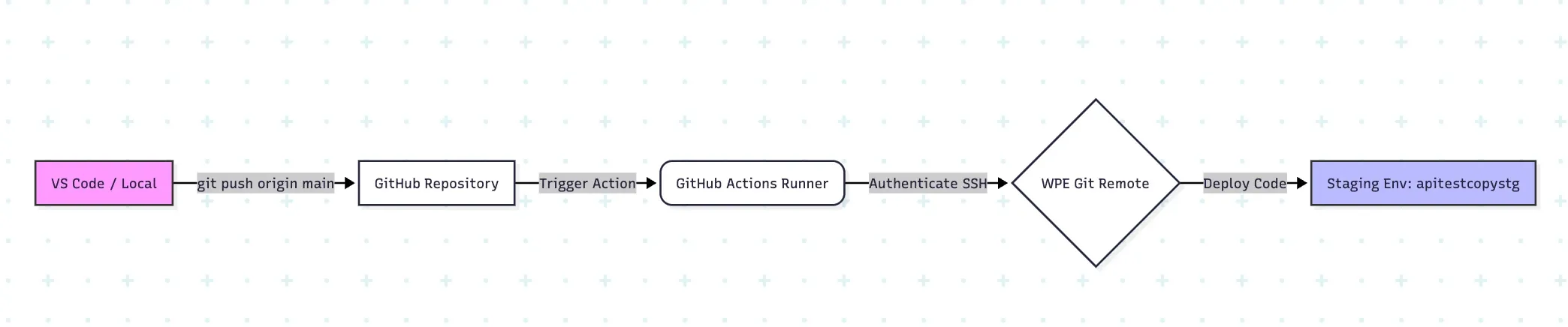
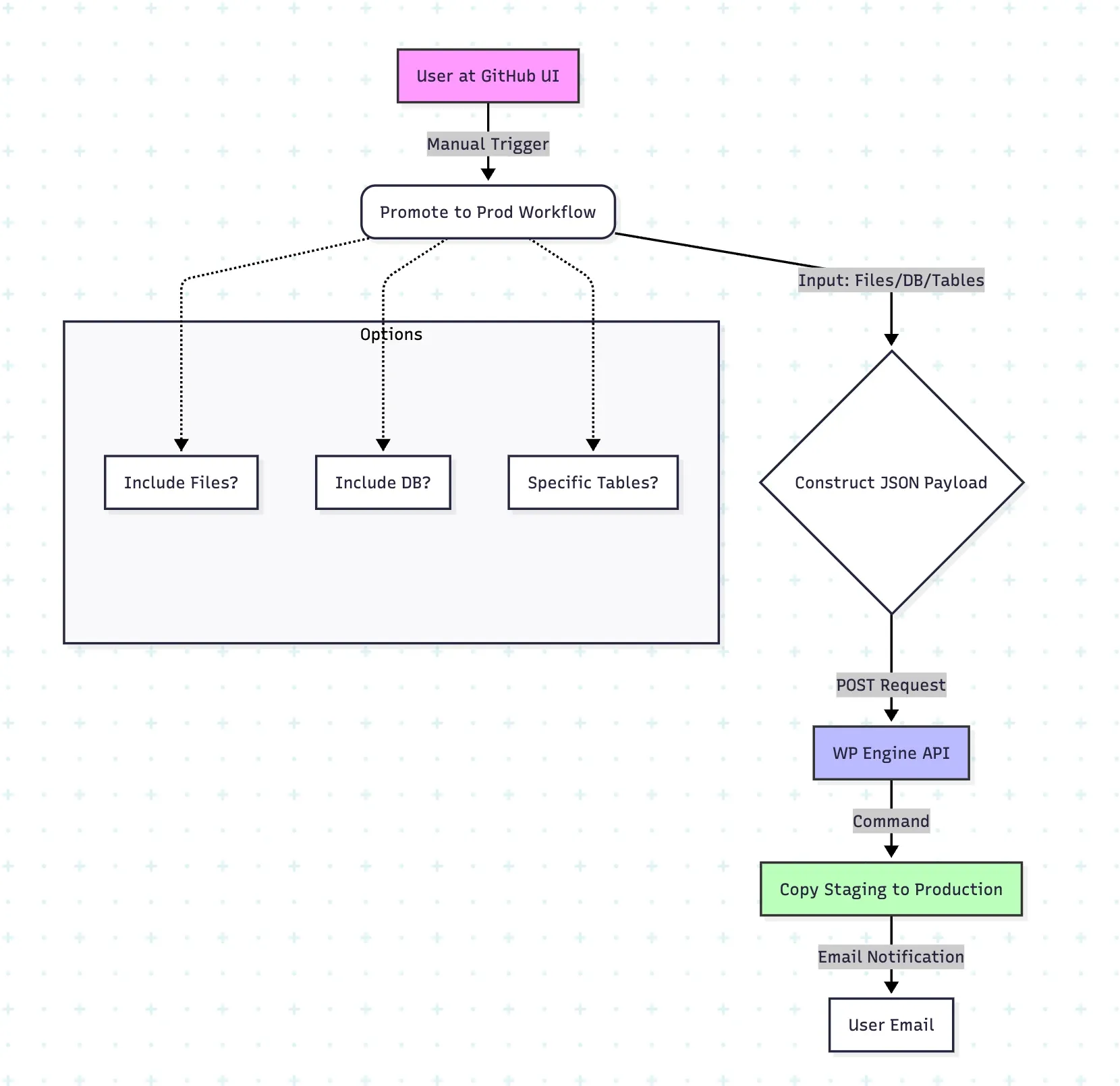
This is a CI/CD pipeline I designed for WordPress sites on WP Engine. Developers work locally in VS Code, and a push to GitHub automatically updates the Staging environment. Changes reach Production only through a manual, flexible “Copy” process that uses the WP Engine API.
The production site in this use case is sensitive and downtime has to be kept to a minimum, so pushing straight from GitHub to production was not an option.
1. Workflow Overview
The process is split into two distinct workflows:
- Automated Staging Deployment: Code pushed to the
mainbranch is immediately deployed to the Staging environment (example: apitestcopystg) via Git. - Production Copy (API Copy): A manual “Click-to-Run” action in GitHub that triggers the WP Engine API to copy the Staging environment to Production. This allows granular control over files, databases, and specific tables.
Visual Flow: Development to Staging (Automated)
Visual Flow: Copy to Production (Manual API)
2. Zero-Downtime Copy Configuration (Feature Flag)
Important: To minimise downtime during the copy from Staging to Production, WP Engine can enable a specific feature flag.
⚠️ Critical Caveat: Data Loss Risk. While this feature keeps the Production site online during the copy, it introduces a risk of data loss.
- The Risk: If any data is written to the Production site (e.g., new orders, comments, user registrations) while the copy is in progress, that data will be lost at the end of the copy because it gets overwritten by the source data from Staging.
- Recommendation: It is highly advised to place the Production site into Content Freeze state during the deployment to prevent data writes.
Enabling the Feature Flag: The feature, called Deploy Directory, copies the site to a separate directory and then swaps that directory with the current production one once the copy is complete. This feature is disabled by default. To enable it, WP Engine support must turn it on for you.
Please confirm with WP Engine support that this flag has been enabled for your specific install if you intend to use it.
3. Prerequisites & Configuration
This section covers the setup required for Secrets, SSH keys, and Git configuration for Smart Plugin Manager (SPM).
A. Secrets Setup
Configure the following in GitHub under Settings > Secrets and variables > Actions.
| Secret Name | Description |
|---|---|
WPE_SSHG_KEY_PRIVATE |
SSH Private Key for Staging git push. |
WPE_API_USER_ID |
WP Engine API User ID (UUID). |
WPE_API_PASSWORD |
WP Engine API Password. |
WPE_SOURCE_ENV_ID |
UUID of the Staging environment. |
WPE_DEST_ENV_ID |
UUID of the Production environment. |
NOTIFICATION_EMAIL |
Default email(s) for completion alerts. |
B. SSH Key Generation Guide
To allow GitHub Actions to push code to WP Engine, you must generate an SSH key pair.
- Generate Keys Locally:
Open your terminal (Mac/Linux) or Git Bash (Windows) and run:
ssh-keygen -t rsa -b 4096 -m PEM -f wpengine_key -C "git-deploy"
- Press Enter to accept defaults (leave passphrase empty).
- This creates two files:
wpengine_key(Private) andwpengine_key.pub(Public).
- Add Public Key to WP Engine:
- Log in to the User Portal (my.wpengine.com).
- Click on your Name (top right) > Profile > SSH Keys.
- Click Add SSH Key.
- Open
wpengine_key.pubon your computer, copy the contents, and paste it into the “Public Key” field. - Click Add SSH Key.
- Add Private Key to GitHub:
- Open the
wpengine_keyfile (the one without an extension) and copy the entire block including-----BEGIN RSA PRIVATE KEY-----. - Go to your GitHub Repo > Settings > Secrets and variables > Actions.
- Create a New Repository Secret.
- Name:
WPE_SSHG_KEY_PRIVATE. - Value: Paste the private key content.
- Open the
Read More: WP Engine SSH Key Documentation
C. Smart Plugin Manager & .gitignore
Smart Plugin Manager (SPM) Setup: WP Engine’s Smart Plugin Manager (SPM) handles plugin updates automatically. Therefore, you must not track or push plugin files via Git. If you push outdated plugin files from the repository, they will overwrite the updated versions on the server, breaking the SPM workflow.
Ensure your root .gitignore file includes the following rules to exclude plugins while keeping themes and custom code:
# WordPress defaults
wp-config.php
wp-content/uploads/
wp-content/cache/

# Ignore ALL plugins (Managed by SPM)
wp-content/plugins/

# Optional: Whitelist a specific custom plugin if you are developing one
# !wp-content/plugins/my-custom-plugin/
Read More: Using Git with WP Engine
4. Workflow Details
Part A: Development & Staging (Automated)
- Trigger:
git pushtomainbranch. - Action: Deploys code changes to the Staging environment.
- Mechanism: Uses the official
wpengine/github-action-wpe-site-deployto sync the repository content to the WP Engine git endpoint.
Developer Process:
- Developer makes changes locally in VS Code.
- Developer commits changes:
git commit -m "Updated header styles". - Developer pushes to GitHub:
git push origin main. - Result: GitHub Actions automatically syncs these files to the Staging site. The developer can view the changes on the Staging URL immediately after the action completes.
File 1: .github/workflows/deploy-staging.yml
Handles the automatic code deployment to Staging.
name: Deploy to Staging (apitestcopystg)
on:
  push:
    branches:
      - main # Adjust if your branch is named 'master'

jobs:
  build:
    runs-on: ubuntu-latest
    steps:
      - uses: actions/checkout@v3
        with:
          fetch-depth: 0 # Required for WPE deploy action to work correctly

      - name: Deploy to WP Engine Staging
        uses: wpengine/github-action-wpe-site-deploy@v3
        with:
          # The name of the WP Engine environment (e.g., apitestcopystg)
          WPE_ENV: apitestcopystg
          # The SSH Private Key stored in GitHub Secrets
          WPE_SSHG_KEY_PRIVATE: ${{ secrets.WPE_SSHG_KEY_PRIVATE }}
Part B: Production Promotion (Manual API Copy)
- Trigger: Manual
workflow_dispatchbutton in GitHub Actions tab. - Action: Triggers the WP Engine
install_copyAPI endpoint. - Mechanism: Sends a JSON payload to WP Engine API command instructing it to copy data from Staging (Source) to Production (Destination).
Capabilities: This workflow is flexible. You can choose to copy the entire environment or specific components.
Available Options (Inputs):
- Copy File System?(Checkbox)
- If checked: Overwrites production files with staging files.
- If unchecked: Files are ignored.
- Copy Database?(Checkbox)
- If checked: Copies the database.
- If unchecked: Database is ignored.
- Specific DB Tables(Text Field)
- Leave Empty: Copies the entire database (if “Copy Database” is checked).
- Specific Tables: Enter a comma-separated list (e.g.,
wp_posts, wp_options) to copy only those tables.
- Notification Emails(Text Field)
- Leave Empty: Uses the default email stored in
NOTIFICATION_EMAILsecret. - Enter Emails: Enter comma-separated emails to override the default (e.g.,
dev@agency.com, client@company.com).
- Leave Empty: Uses the default email stored in
File 2: .github/workflows/copy-to-prod.yml
Handles the manual API copy request to Production.
name: Copy Staging to Production (Copy)
on:
  workflow_dispatch:
    inputs:
      include_files:
        description: 'Copy File System?'
        required: true
        default: true
        type: boolean
      include_db:
        description: 'Copy Database?'
        required: true
        default: true
        type: boolean
      specific_tables:
        description: 'Specific DB Tables (comma-separated, leave empty for all)'
        required: false
        type: string
      notification_emails:
        description: 'Emails (leave empty to use default from Secrets)'
        required: false
        default: ''
        type: string

jobs:
  trigger-copy:
    runs-on: ubuntu-latest
    steps:
      - name: Call WP Engine Copy API
        env:
          WPE_USER: ${{ secrets.WPE_API_USER_ID }}
          WPE_PASS: ${{ secrets.WPE_API_PASSWORD }}
          # Pulling Environment IDs from Secrets
          SOURCE_ID: ${{ secrets.WPE_SOURCE_ENV_ID }}
          DEST_ID: ${{ secrets.WPE_DEST_ENV_ID }}
          # Pulling Default Email from Secrets
          DEFAULT_EMAILS: ${{ secrets.NOTIFICATION_EMAIL }}
          # Inputs from the UI
          INPUT_EMAILS: ${{ inputs.notification_emails }}
          INPUT_FILES: ${{ inputs.include_files }}
          INPUT_DB: ${{ inputs.include_db }}
          INPUT_TABLES: ${{ inputs.specific_tables }}
        run: |
          echo "Preparing WP Engine Copy..."

          # 1. Determine Email List
          # If input is empty, use the secret. Otherwise, use the input.
          if [[ -z "${INPUT_EMAILS// }" ]]; then
            FINAL_EMAIL_STRING="$DEFAULT_EMAILS"
            echo "No input provided. Using DEFAULT email from Secrets."
          else
            FINAL_EMAIL_STRING="$INPUT_EMAILS"
            echo "Using CUSTOM email from Input."
          fi

          # Process Emails into JSON Array
          EMAIL_ARRAY=$(jq -n --arg emails "$FINAL_EMAIL_STRING" '$emails | split(",") | map(sub("^\\s+|\\s+$"; ""))')

          # 2. Process Tables (String -> JSON Array OR null)
          if [[ -z "${INPUT_TABLES// }" ]]; then
            TABLE_ARRAY="null"
            echo "Copying ALL tables (no specific tables selected)."
          else
            TABLE_ARRAY=$(jq -n --arg tables "$INPUT_TABLES" '$tables | split(",") | map(sub("^\\s+|\\s+$"; "")) | select(length > 0)')
            echo "Copying specific tables: $TABLE_ARRAY"
          fi

          # 3. Construct Payload
          JSON_PAYLOAD=$(jq -n \
            --arg src "$SOURCE_ID" \
            --arg dest "$DEST_ID" \
            --argjson emails "$EMAIL_ARRAY" \
            --argjson files "$INPUT_FILES" \
            --argjson db "$INPUT_DB" \
            --argjson tables "$TABLE_ARRAY" \
            '{
              source_environment_id: $src,
              destination_environment_id: $dest,
              notification_emails: $emails,
              custom_options: (
                { include_files: $files, include_db: $db } +
                if ($tables != null) then { db_tables: $tables } else {} end
              )
            }')
          echo "Generated Payload: $JSON_PAYLOAD"

          # 4. Send Request
          curl -X POST "https://api.wpengineapi.com/v1/install_copy" \
            -u "$WPE_USER:$WPE_PASS" \
            -H "Content-Type: application/json" \
            -d "$JSON_PAYLOAD"
5. Step-by-Step Usage Guide
Step 1: Push Code to Staging
- Open your project in VS Code.
- Edit your theme/plugin files.
- Commit and push your changes to the
mainbranch.git add . git commit -m "Fix layout bug" git push origin main - Go to the Actions tab in GitHub to see the “Deploy to Staging” workflow running.
- Verify your changes on the Staging URL.
Step 2: Copy to Production
When the Staging site is verified and ready for launch:
- Safety Check: Verify the Production site is in content freeze, and no one is working on it to prevent data loss.
- Navigate to the Actions tab in the GitHub repository.
- On the left sidebar, click Copy Staging to Production (Copy).
- Click the Run workflow dropdown button on the right.
- Configure your deployment:
- Files: Check if you updated code/assets.
- Database: Check if you need to sync content/settings.
- Specific Tables: If you only want to sync blog posts but keep plugin settings intact, type
wp_posts, wp_postmeta. - Emails: Leave blank to notify the default admin, or add your own email.
- Click the green Run workflow button.
- WP Engine will begin the environment copy process. You will receive an email upon completion.
6. Technical Payload Reference
For troubleshooting, the GitHub Action constructs a JSON payload dynamically based on your inputs.
Example: Full Copy (Default)
{
  "source_environment_id": "eda55...",
  "destination_environment_id": "3d208...",
  "notification_emails": ["default@example.com"],
  "custom_options": {
    "include_files": true,
    "include_db": true
  }
}
Example: Partial Copy (Specific Tables) Input: Include DB = True, Specific Tables = “wp_options, wp_users”
{
  "source_environment_id": "eda55...",
  "destination_environment_id": "3d208...",
  "custom_options": {
    "include_files": true,
    "include_db": true,
    "db_tables": ["wp_options", "wp_users"]
  }
}
Skills used
CI/CD design, GitHub Actions (push-triggered and manual workflows with inputs), Git deployment over SSH, the WP Engine REST API, release management for sensitive production sites, GitHub secrets, email notifications, risk analysis (content freeze and data-loss windows).