This is a proof of concept I built for automating log offloading without relying on an S3 bucket. The same approach can be adapted to whatever log monitoring tools and server setup you prefer.
This article covers how to offload logs to a remote server without the need for an S3 bucket. This can be done on a local machine (Linux or UNIX), but that is not recommended, as the cron will not run when the machine is turned off.
GoAccess Installation & Setup
You’ll need to install GoAccess on the machine or server you want logs offloaded to.
- Install Homebrew (if not already installed):
/bin/bash -c "$(curl -fsSL https://raw.githubusercontent.com/Homebrew/install/HEAD/install.sh)"
For more details, visit: Homebrew - Install GoAccess via Homebrew:
brew install goaccess - Download the .goaccessrc configuration file and place it in
/Users/yourusernamehere/.
Access Log Download and Processing Script
To automate the process of downloading logs daily and processing them through GoAccess, you can use the script below or create something similar based on the same concept.
#!/bin/bash

# === CONFIGURATION ===
LOG_URL="https://domain.com/YOUR_LOG_TOKEN/logs/previous.log"
LOG_DIR="$HOME/Desktop/GoLogs/logs"
REPORT_DIR="$HOME/Desktop/GoLogs/goaccess_report"
CUMULATIVE_LOG="$LOG_DIR/all_logs.log"
REPORT_HTML="$REPORT_DIR/report.html"

# Create directories if they don't exist
mkdir -p "$LOG_DIR"
mkdir -p "$REPORT_DIR"

# Timestamped filename to avoid overwriting
TODAY=$(date +%F)
DAILY_LOG="$LOG_DIR/log_$TODAY.log"

# Download the daily log
curl -s "$LOG_URL" -o "$DAILY_LOG"

# Append to cumulative log (ensure no duplication)
cat "$DAILY_LOG" >> "$CUMULATIVE_LOG"

# Update GoAccess HTML report
goaccess "$CUMULATIVE_LOG" \
  -o "$REPORT_HTML" \
  --log-format='%h %v %e [%d:%t %^] "%r" %s %b "%R" "%u"' \
  --date-format='%d/%b/%Y' \
  --time-format='%T' \
  --ignore-panel=REQUESTS \
  --ignore-panel=REQUESTS_STATIC_TS \
  --ignore-panel=NOT_FOUND \
  --ignore-panel=VISIT_TIMES \
  --ignore-panel=VIRTUAL_HOSTS \
  --ignore-panel=REFERRING_SITES \
  --ignore-panel=REFERRERS_URL \
  --ignore-panel=KEYPHRASES \
  --ignore-panel=REMOTE_USER \
  --ignore-panel=TIME_SERVE \
  --ignore-panel=USER_AGENTS \
  --ignore-panel=GEO_LOCATION \
  --ignore-panel=MIME_TYPE \
  --ignore-panel=TLS_TYPE

# cron to set up locally to get it running every day at midnight
# 0 0 * * * /path/to/LogMonitor.sh >> /path/to/update.log 2>&1
Required Modifications:
LOG_URL: This part needs to be modified to reflect the site you want to download the logs from. You can get that URL from the wp-admin and copy the link of the previous access log under the WP Engine section:
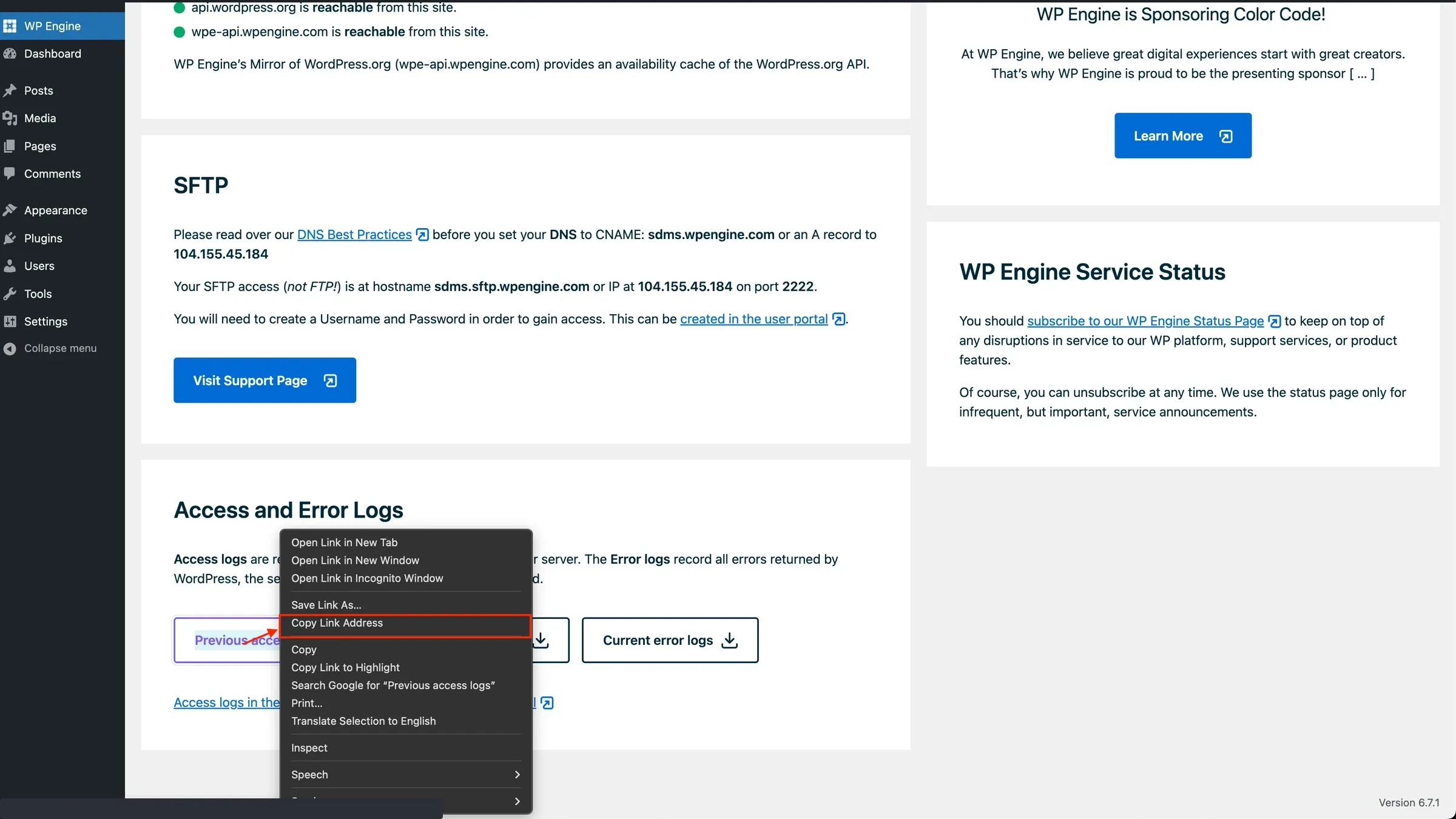
This URL should stay the same for each site
Optional Modifications:
LOG_DIR: You can change this to point to a specific directory of your choosing.
REPORT_DIR: You can change this to point to a specific directory for the generated HTML report.
Setting up cron locally or on a remote server
Edit the crontab:
crontab -eAdd Cronjob
0 0 * * * /path/to/LogMonitor.sh >> /path/to/update.log 2>&1- The above cron will run daily at midnight (Server Time). You’ll need to change the path to the LogMonitor.sh script
- update.log file contains any output made by the script running; it’s optional, but good to have when needing to troubleshoot why the script is not running as intended
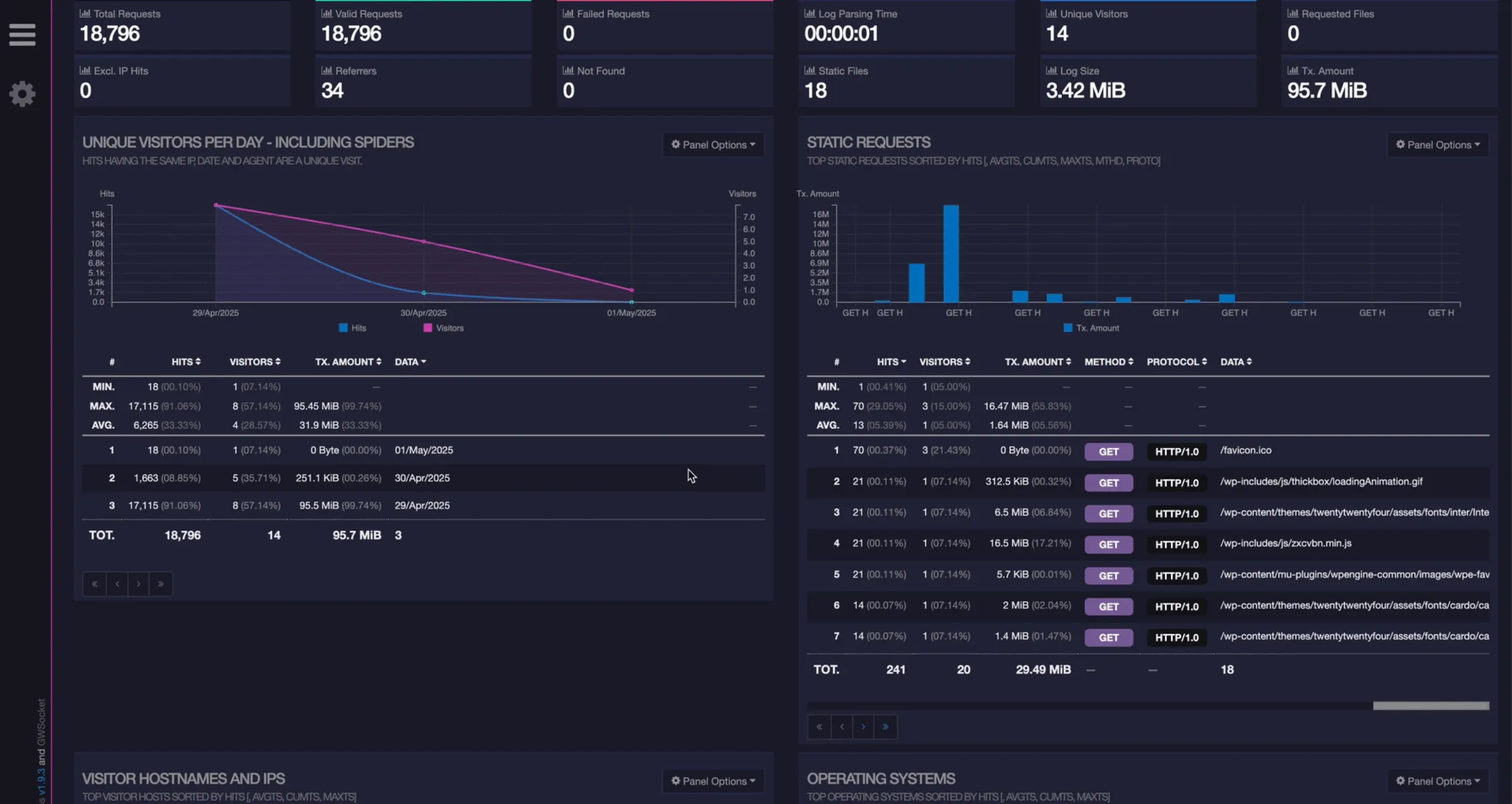
When accessing a report generated under report.html, it will show information about:
- Unique visitors per day
- Static Requests
- Visitor Hostnames and IPs (IPs)
- Browsers (User Agents)
- Referrer URLs
- HTTP Status Codes
Skills used
Bash scripting, cron scheduling, log processing and analysis, GoAccess dashboards, web server access logs, observability without extra cloud storage.